Use Project Go Hub on a phone
Project Go Hub on a phone is the same app you use on a computer. Your account, your pages and your church's information are the same. Only the layout changes to fit a small screen.
Where: Log in on your phone the same way you do on a computer. See Sign up and log in. The rest of this guide applies on a phone too. This page covers only what is different.
Get the app
- On your phone, open the app store.
- Search for Project Go Hub.
- Install the app.
- Open the app.
- Log in with the same email and password you use on a computer.
You can also use Project Go Hub in your phone's browser. It works the same way there.
Move around with the tab bar
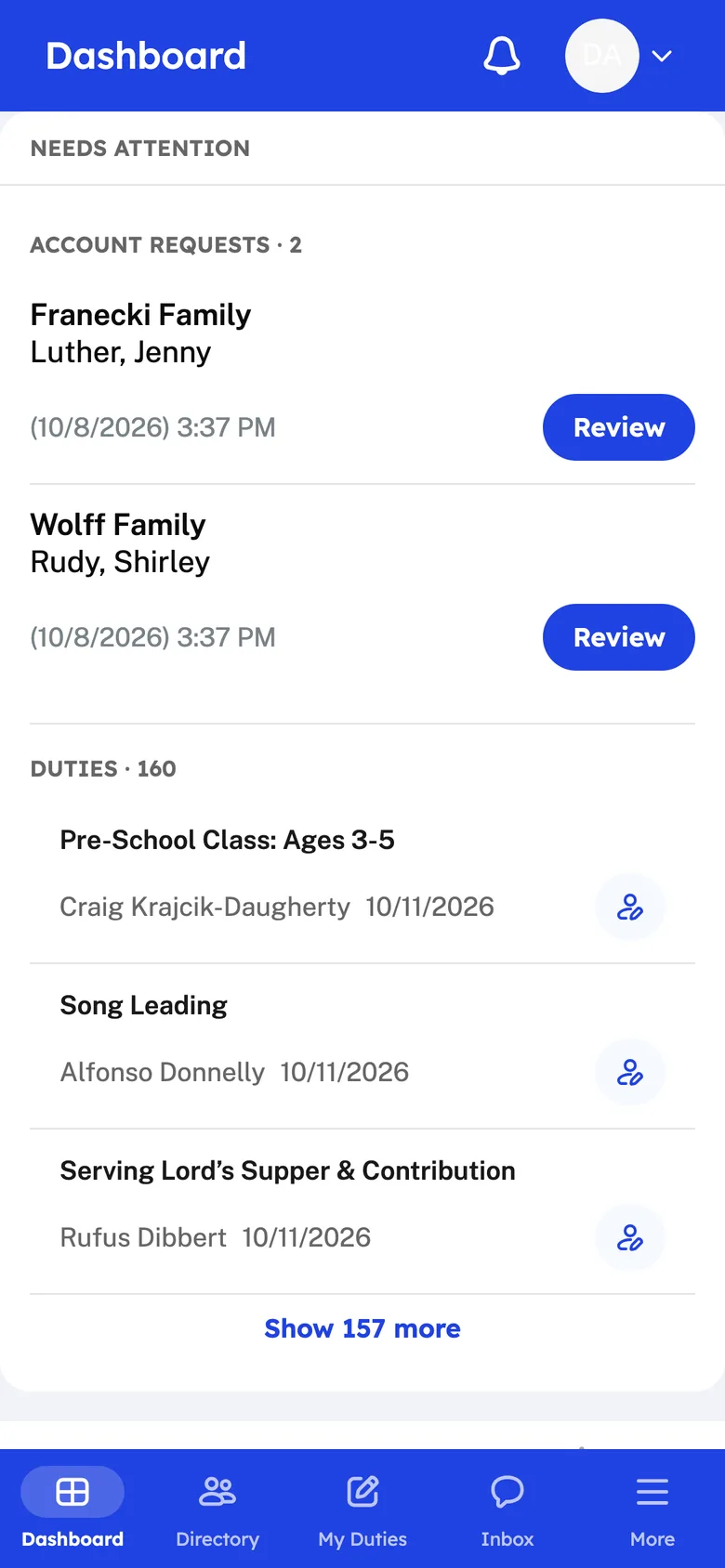
On a phone, the menu is a bar at the bottom of the screen. Tap a tab to open its page.
| Tab | Opens |
|---|---|
| Dashboard | The Dashboard |
| Directory | The Member Directory. If your role cannot open it, the tab opens the first Church Membership page you can use. |
| My Duties | My Duties |
| Inbox | Your Inbox |
| More | The rest of the menu |
You see the Directory, My Duties and Inbox tabs only if your role can open those pages.
Open the rest of the menu
- In the tab bar, tap More.
- Tap a menu item. Items with an arrow, such as Church Membership or Message Center, open a short list.
- Tap the page you want.
- The More menu has the same items as the menu on a computer. It leaves out Dashboard and My Duties, because they are tabs.
- Help Guide and My Account are at the bottom of the More menu.
- To close the menu without choosing a page, tap the X.
Use the top bar
The top bar shows the name of the page you are on. On the right it has up to three buttons.
- The bell opens Latest Notifications. Tap a notification to open it. Tap Mark All as Read to clear the unread count. Tap the gear to open Notifications Settings.
- The question mark opens a short help note for the page you are on. Tap Done to close it. Only some pages have this button.
- Your picture or initials opens a small menu with My Account Settings and Log Out.
Allow notifications
After you log in, your phone may ask if Project Go Hub can send you notifications.
- When your phone asks, tap the choice that allows notifications.
- In Project Go Hub, open My Account.
- Tap Notifications.
- Make sure Allow Push Notifications on my mobile phone is on.
- Tap Update.
If you do not allow notifications on your phone, Project Go Hub cannot send push notifications to it. For all the notification choices, see My Account.
Know what is different on a phone
| Page | On a phone |
|---|---|
| Menu | Digital Picture Board is not in the menu. Open it on a computer. |
| Dashboard | The Monthly Attendance Stats chart shows only on a computer. On a phone, tap View insights to see the charts. |
| Member Directory | The Print or download button and the Member Map button show only on a computer. |
| Calendar | You can switch between Month and Agenda. The week view is only on a computer. |
| Screen direction | In the phone app, the screen stays upright when you turn the phone sideways. |
Reconnect when there is no connection
Project Go Hub needs an internet connection. If the phone app cannot connect, it shows "Can't reach Project Go".
- Check that your phone has Wi-Fi or mobile data.
- Tap Try again.
Go back with your phone's Back button
If your phone has a Back button, it takes you to the page you were on before. When there is no earlier page, Back closes the app.
Add events and duties to your phone's calendar
In the phone app, calendar files open your phone's share screen instead of being saved as a download. From there you choose your calendar app.
- On an iPhone, the button on an event or a duty says Add to Calendar. It opens the share screen with that one event.
- On other phones, the button says Add to Google Calendar.
- If you can edit the Calendar, Export Calendar also uses the share screen in the phone app. See Calendar.
Open and download files
- In the phone app, pictures, videos and audio files open inside the app. Other files open in your phone's browser.
- You cannot download a whole folder in the phone app. A message says "Download the folder from a computer". Open the folder and download the files one at a time, or use a computer.
Give on an iPhone
In the phone app on an iPhone, Payment Method shows only Credit/Debit Card. To give with Bank Account (ACH), use a computer.