My Account
My Account is where you keep your own information up to date. You can edit your profile and your family, change the email and password you log in with, and choose which notifications you get.
Where: Click My Account at the bottom of the menu. On a phone, tap More, then My Account. You can also click your picture or initials at the top right, then My Account Settings.
Who can use this: Roles with Edit access to My Account in Role Management.
The page has three tabs: Profile, Login Details and Notifications.
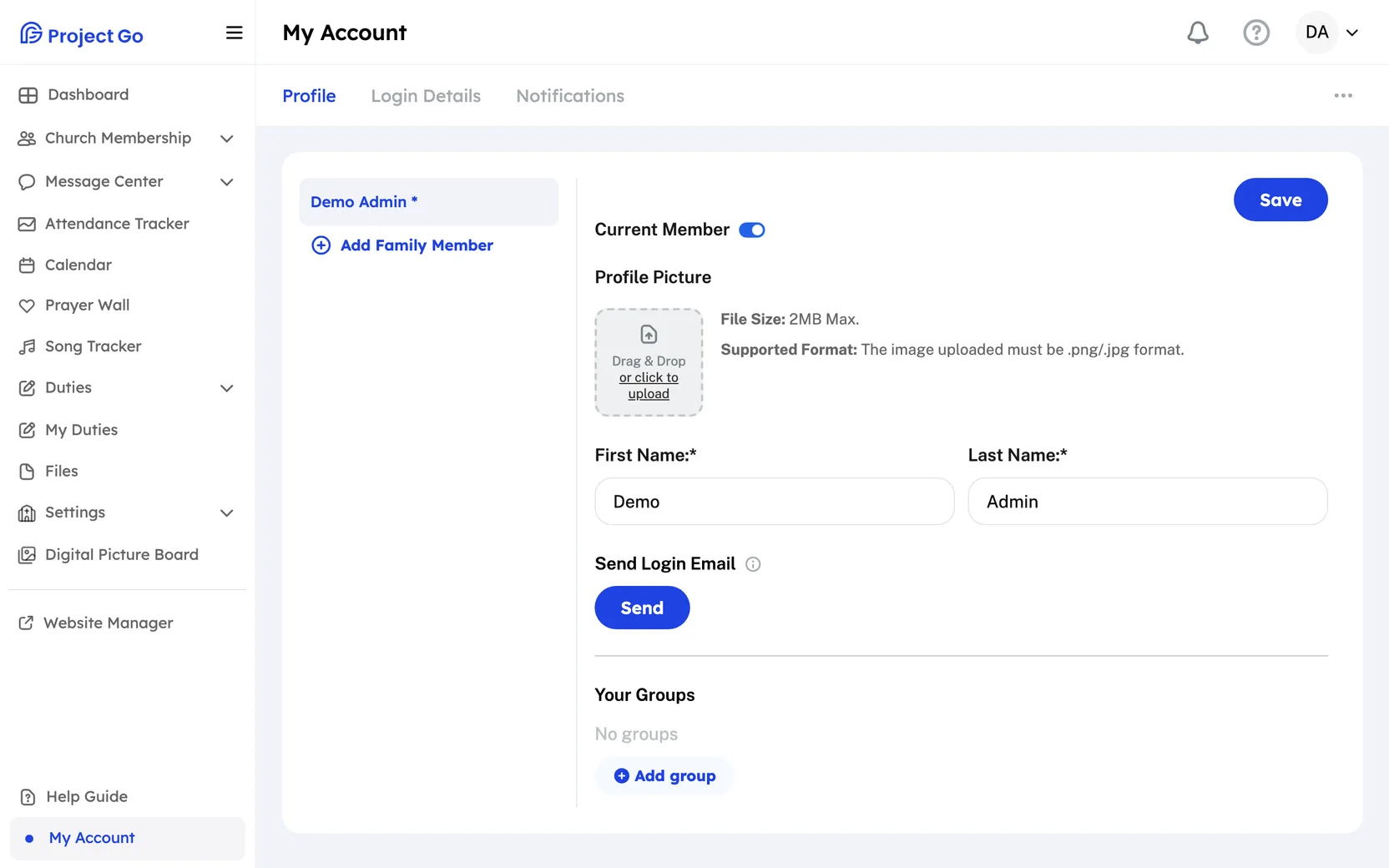
Update your profile
Your profile is what other members see in the Member Directory.
- Click the Profile tab.
- If you see a list of your family, click your own name. On a phone, the list is a drop-down named Select a family member.
- Change the information you want to update.
- At the top of the form, click Save.
| Field | Good to know |
|---|---|
| Profile Picture | A .png or .jpg file, 2MB at most. |
| First Name, Last Name, Gender | Required. Required fields are marked with *. |
| Family Relationship | Husband, Wife, Son or Daughter. Required. It shows when your family has more than one person. |
| Birthday | Turn on Hide Birth Year to show only the month and day. |
| Baptized | Turn it on to add a date. Click Clear Date to remove the date. |
| Hobbies | Up to 1,000 characters. |
| Address | Start typing and choose your address from the list. If it is not in the list, click Add Address Manually. An address you add manually does not show on the Member Map. |
| Show your household on the church map | Off by default. Turn it on if it is okay for other members to see your family's location on the Member Map. |
| Email, Phone | Your contact details. |
| Occupation, Employer, School | Optional. |
| Social Media Links | Instagram, Facebook and X. Optional. |
| Previous church, Comments | Optional. |
Under Your Groups you see the member groups you belong to. See Member Groups.
Change your profile picture
- On the Profile tab, under Profile Picture, click the picture box. If you already have a picture, click Change.
- Choose a .png or .jpg file that is 2MB or smaller.
- In the Reframe Your Picture window, adjust the picture.
- Click Save in that window.
- At the top of the form, click Save.
- To take the picture away, click Remove.
- If your family has a family picture, you can click Crop from family photo to make your picture from it.
Update your family profile
You see your family list if you are the owner of your family profile and your relationship is Husband or Wife. Other family members see only their own profile. In the list, * marks the husband and the wife.
- On the Profile tab, click your family's name. It ends with the word Family.
- Change the Profile Picture, Family Name, Address, Previous church, Anniversary or Comments.
- Click Save.
- Turn on Update all family members' last names to match if a new Family Name should also change each person's last name.
- Next to Anniversary, turn on Hide Year to show only the month and day.
- The family's name shows in the list only when your family has more than one person.
Add a family member
- On the Profile tab, click Add family member. On a phone, open the Select a family member list and choose Add family member.
- Type the First Name and Last Name.
- Choose the Family Relationship.
- Choose the Gender.
- Fill in any other fields you want.
- Click Save.
Send a family member their own login
A family member can log in with their own email. The person needs an email on their profile first.
- On the Profile tab, click the family member's name.
- Next to Send Login Email, click Send.
Project Go Hub sends the person an email with a secure link to create a password and sign in.
Remove a family member
- On the Profile tab, click the trash can next to the person's name. On a phone, choose the person in the Select a family member list first.
- In the Delete Member window, click Yes, delete.
This is permanent and you cannot undo it. You cannot remove the only owner of the family profile.
Move a family member out of your family profile
These buttons are at the bottom of a family member's profile. You see them if you own the family profile or you are an admin.
- Make Profile Independent gives the person their own family profile. In the Separate Member Profile window, click Yes, separate. You cannot undo this.
- Transfer to Another Family moves the person to a family that already exists. Search for the family, click it, then click Transfer.
If the person is the last owner of the family profile, you must choose a new family owner first.
Change your login email
- Click the Login Details tab.
- Click Email.
- Type the email you log in with now in Current Email.
- Type the new email in New Email.
- Type the new email again in Confirm new Email.
- Click Update.
- Follow the message that appears to confirm the change.
When the change is confirmed, you see "Login credentials successfully changed!" and you are logged out. Log in again with the new email.
Change your password
- Click the Login Details tab.
- Click Password.
- Type your password in Current Password.
- Type the new password in New Password.
- Type the new password again in Confirm new Password.
- Click Update.
- Follow the message that appears to confirm the change.
The new password needs at least 8 characters, one uppercase letter, one lowercase letter and one special character. When the change is confirmed, you see "Login credentials successfully changed!" and you are logged out. Log in again with the new password.
If you forgot your password and cannot log in, see Sign up and log in.
Choose your notifications
- Click the Notifications tab.
- Turn each switch on or off.
- Click Update.
| Section | Switches | Good to know |
|---|---|---|
| Texts Messages & Push Notifications | Allow text messages to my phone number Allow Push Notifications on my mobile phone | These turn texts and push notifications on or off for you. The text switch shows only if your church uses text messages. |
| Duty Assignment Confirmation | Text Reminder Email Reminder Push Notification Reminder | Required. At least one must be on. You can turn on Text Reminder only when texts are allowed, and Push Notification Reminder only when push notifications are allowed. |
| Duty Assignment Reminders | 24 Hs Before Duty 3 Days Before Duty 7 Days Before Duty | Turn on each reminder you want before a duty. |
You can open the same settings from the bell at the top of any page. Click the bell, then click the gear. To use push notifications on a phone, see Use Project Go Hub on a phone.
Delete your account
This deletes your information, your family and your data. You cannot undo it.
- In My Account, click the button with three dots, to the right of the tabs.
- Click Delete Account.
- Click Yes, delete.
- Type your password in Password.
- Click Confirm.
You are logged out and taken to the log in page.
If something goes wrong
| Message on the screen | What to do |
|---|---|
| "File too large" | Choose a picture that is smaller than 2MB. |
| "Invalid file type" | Choose a .png or .jpg picture. |
| "Start typing your address and select an option from the dropdown." | Choose your address from the list, or click Add Address Manually. |
| "Phone number must be exactly 10 digits" | Type a 10-digit phone number. |
| "Email is required when user has credentials." | A person who can log in must have an email on their profile. |
| "Baptism date cannot be before birth date." | Check the Birthday and the baptism date. |
| "Comments must not exceed 500 characters" | Shorten the text in Comments. |
| "Add email to send login credentials." | Add an email to the family member's profile and click Save. Then click Send. |
| "Current email does not match the logged-in user's email." | In Current Email, type the email you log in with now. |
| "Emails do not match." | Type the same new email in both boxes. |
| "New email cannot be the same as the current email." | Type a different new email. |
| "Email already in use." | Another account uses that email. Choose a different one. |
| "Current password is incorrect." | Type the password you log in with now. |
| "Passwords do not match." | Type the same new password in both boxes. |
| "New password cannot be the same as the current password." | Choose a different new password. |
| "At least one Confirmation option must be selected" | Under Duty Assignment Confirmation, turn on at least one switch. |