Sign up and log in
Each person needs an account to use Project Go Hub. You ask for an account, a church admin approves it, and then you can log in.
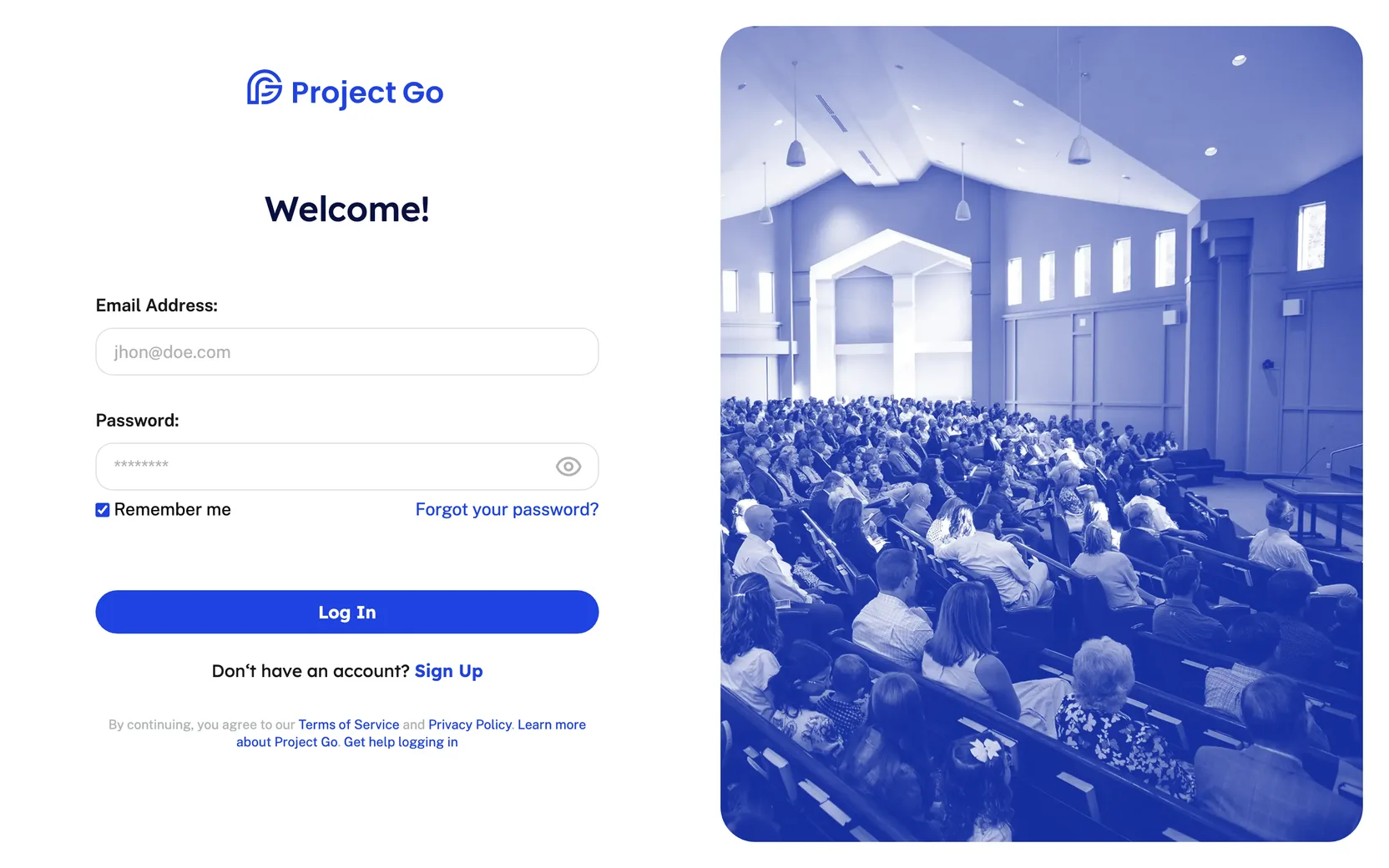
Where: The log in page opens when you are not logged in. To sign up, click Sign Up under the Log In button.
Create an account
You need a way to tell Project Go Hub which church you belong to. There are two ways:
- A sign-up link from your church. If you open the sign-up page from your church's own link, the page already knows your church.
- A Church ID. If you do not have a link, the sign-up page asks for a Church ID. Ask a church admin for it.
- On the log in page, click Sign Up.
- Type your First Name and Last Name.
- Type your Email Address. You log in with this email.
- If you want, type your Phone Number. It is optional.
- Under Gender, choose Male or Female.
- If you see Church ID, type the Church ID from your church.
- Click Continue.
- Type a password in Password.
- Type the same password in Confirm Password.
- Click Continue.
- Check your name, email, phone and church under Basic Information.
- Click Submit.
A message says "Thank you for requesting an account". Click Return to Login screen.
Your password must pass the three checks shown under the box:
- Contains at least 8 characters
- Contains both lower and uppercase letters
- Contains a special character
Add family members when you sign up
You can add your family on the last sign-up step, before you click Submit.
- On the step that shows Basic Information, click Add Family Members.
- Type the person's First Name.
- Under Relationship, choose Husband, Wife, Son or Daughter.
- To add one more person, click Add Another Family Member.
- Click Submit.
- Each family member is saved with your last name.
- To remove an extra person, click the trash can next to that row.
- If you click Cancel and then Yes, cancel, the family members you typed are removed and you go back one step.
- You can also add family members later. See My Account.
Wait for approval
A church admin reviews each request. You cannot log in until your request is approved. Watch your email for updates on your account.
If you are an admin, see Account Approvals.
Log in
- On the log in page, type your Email Address.
- Type your Password.
- Click Log In.
The Dashboard opens.
Stay logged in with Remember me
Remember me is under the password box. It is checked when the page opens.
- Checked: this device keeps you logged in for up to 31 days.
- Not checked: this device keeps you logged in for up to 1 day.
Log out
- At the top right, click your picture or your initials.
- Click Log Out.
Reset a password you forgot
- On the log in page, click Forgot your password?
- Type your account email in Email Address.
- Click Reset Password.
- Open the email you receive.
- Click the link in the email.
- Type a new password in New Password.
- Type it again in Confirm New Password.
- Click Save New Password.
A message says "Password successfully changed!". Click Sign In to continue and log in with the new password.
To change your password or your login email while you are logged in, see My Account.
If something goes wrong
| Message on the screen | What to do |
|---|---|
| "Church ID is not in the Project Go system" | The Church ID does not match a church. Check it with a church admin. |
| "We can't identify your church. Please check the URL or contact your church leadership." | The sign-up link does not match a church. Ask your church for the correct link. |
| "This email is already in use" | Another account already uses this email. |
| "Entered value does not match email format" | Check the email for a typing mistake. |
| "Phone number is not in a valid format. Valid formats: (XXX) XXX-XXXX, XXX-XXX-XXXX, XXX XXX XXXX, or XXXXXXXXXX." | Type the phone number in one of the formats listed. |
| "Password do not match" | Type the same password in both boxes. |
| "This field is required" | Fill in the box above the message. |
| "Password reset link is expired!" | On that page, click Forgot your password? to get a new link. |