Worship Assignments
Use Worship Assignments to build the schedule of who does each duty at each worship service, and to publish it so members are told.
Where: In the menu, click Duties, then Worship Assignments.
Who can use this: Your role needs Edit access to Duty Assignments in Role Management.
Before you start: Set up your services and duties in the Duty Manager. Then set who can do each duty in Member Permissions.
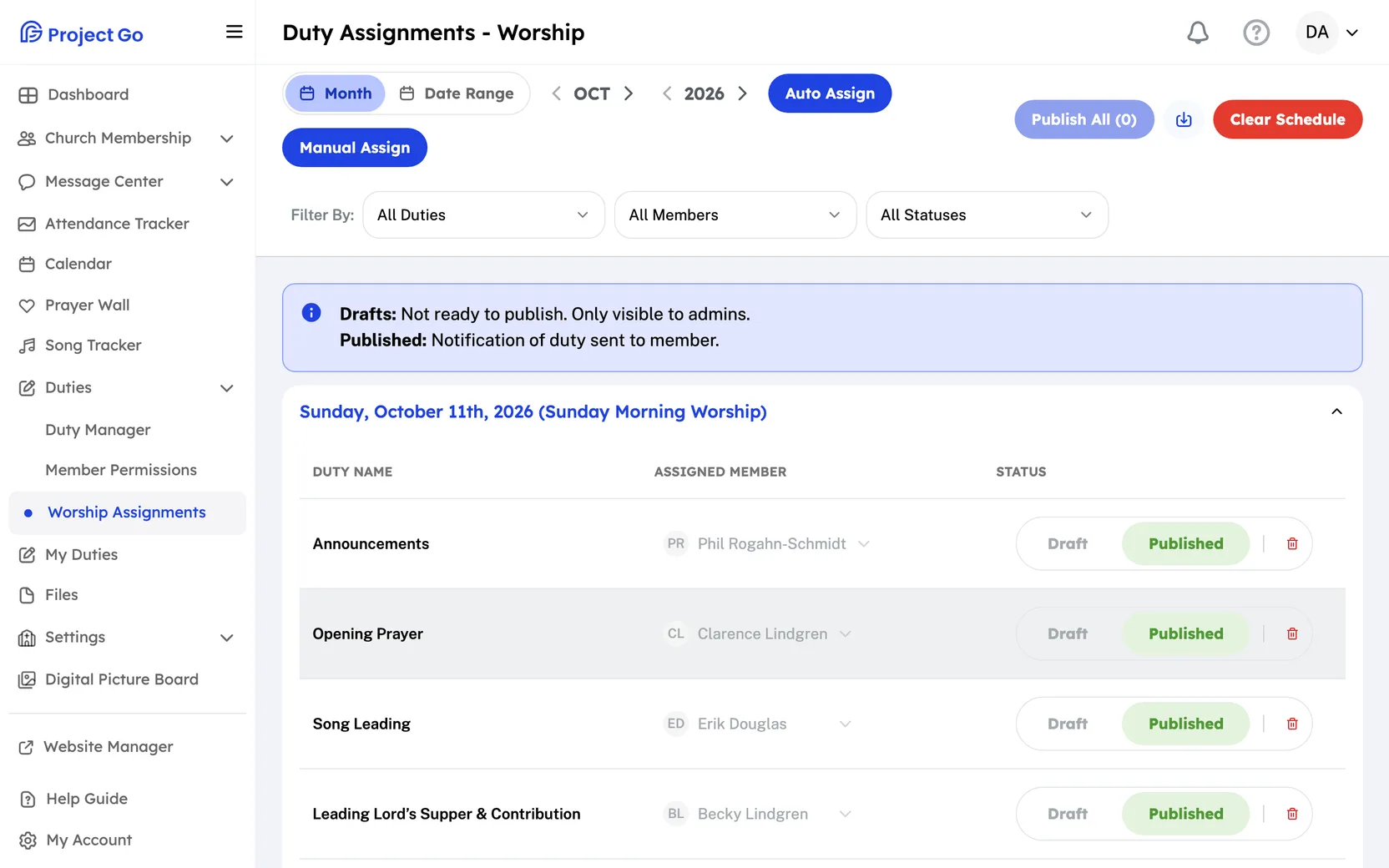
Choose the dates
- Click Month or Date Range.
- For Month, use the arrows to pick the month and the year.
- For Date Range, click the date box, then click the first day and the last day.
You cannot pick a past month or a past date. If the dates you pick already have assignments, they appear on the screen.
Create the schedule automatically
- Choose the dates.
- Click Auto Assign.
Project Go Hub creates the duties for those dates and fills in members. It uses the limits on the Duty Assigner Settings tab of the Duty Manager.
- Each service and date has its own section. Click the section title to open or close it.
- Each row shows the Duty Name, the Assigned Member and the Status.
- Duties that last a whole month are listed first, in sections that end with All Month.
Fill the schedule by hand
- Choose the dates.
- Click Manual Assign.
- In each row, click Unassigned and choose a member.
Manual Assign creates the duties with no members filled in. In Month view, when some draft duties still have no member, you can click Auto Assign Remaining to let Project Go Hub fill the rest.
Change who is assigned
- In the duty's row, click the name under Assigned Member.
- Type in Search Member... to find a member.
- Click the member.
- The label next to each name says Never assigned or Last assigned: with a date. Green means never, or 30 days ago or more. Yellow means 8 to 29 days ago. Red means in the last 7 days.
- Members under Not eligible under church rules are dimmed, and the label shows the reason. You can still pick them.
- To leave the duty empty, click Remove assignment.
Publish the schedule
The screen explains the two statuses: Drafts are not ready to publish and are visible only to admins. Published means the notice of the duty was sent to the member.
- Check that each duty has the right member.
- To publish one duty, click Published in its Status column.
- To publish every draft that has a member, click Publish All. The number on the button is how many duties it will publish.
- In the Publish All Worship Duties box, click Publish All again.
- A duty needs a member before you can publish it.
- You cannot move a published duty back to draft.
Handle a replacement request
When a member asks for a replacement, the duty shows Replacement Requested next to its name.
- In the status filter, choose Requested Replacement.
- In the duty's row, click the name under Assigned Member.
- Click the new member.
Members ask for a replacement from My Duties.
Filter the schedule
- Next to Filter By:, open the duty, member or status list.
- Click a choice. The status list has Draft, Published and Requested Replacement.
- To see everything again, choose All Duties, All Members and All Statuses.
See or delete one duty
- Click a row to open Worship Duty Details.
- Click Close when you are done.
- To delete the duty, click Delete, or click the trash icon in the row. Then click Yes, delete.
Export the schedule
- Click the download button next to Publish All.
- Choose .csv file, .xls file or .pdf file.
- Click Download.
The export has published duties only. Drafts are left out.
Clear the schedule
- Choose the dates you want to clear.
- Click Clear Schedule.
- Read the Clear Worship Schedule box. It shows the dates and how many assignments will be removed.
- To remove confirmed assignments too, check Also remove confirmed assignments.
- Click the red Clear button. It shows how many assignments it will remove.
Note: Clear Schedule is on a computer only.
If something goes wrong
- A user must be assigned to the duty before it can be published. Choose a member for the duty, then publish it.
- Assignment saved with a warning: the member was assigned. Read the warning to see what to check.
- No worship assignments for this month. Use the Assigner to create them. Click Auto Assign or Manual Assign.
On a phone
- Click More in the bottom bar, then Duties, then Worship Assignments.
- Manual Assign, Auto Assign Remaining, Publish All and Export are under the Actions button.
- Each draft duty has a Publish button. It changes to Published.
- Click the filter button to open the Filter Assignments panel.
- There is no Clear Schedule button.