Duty Manager
Use the Duty Manager to set up your church's services and the duties each service needs, such as leading singing or a prayer. Member Permissions and Worship Assignments use the services and duties you set up here.
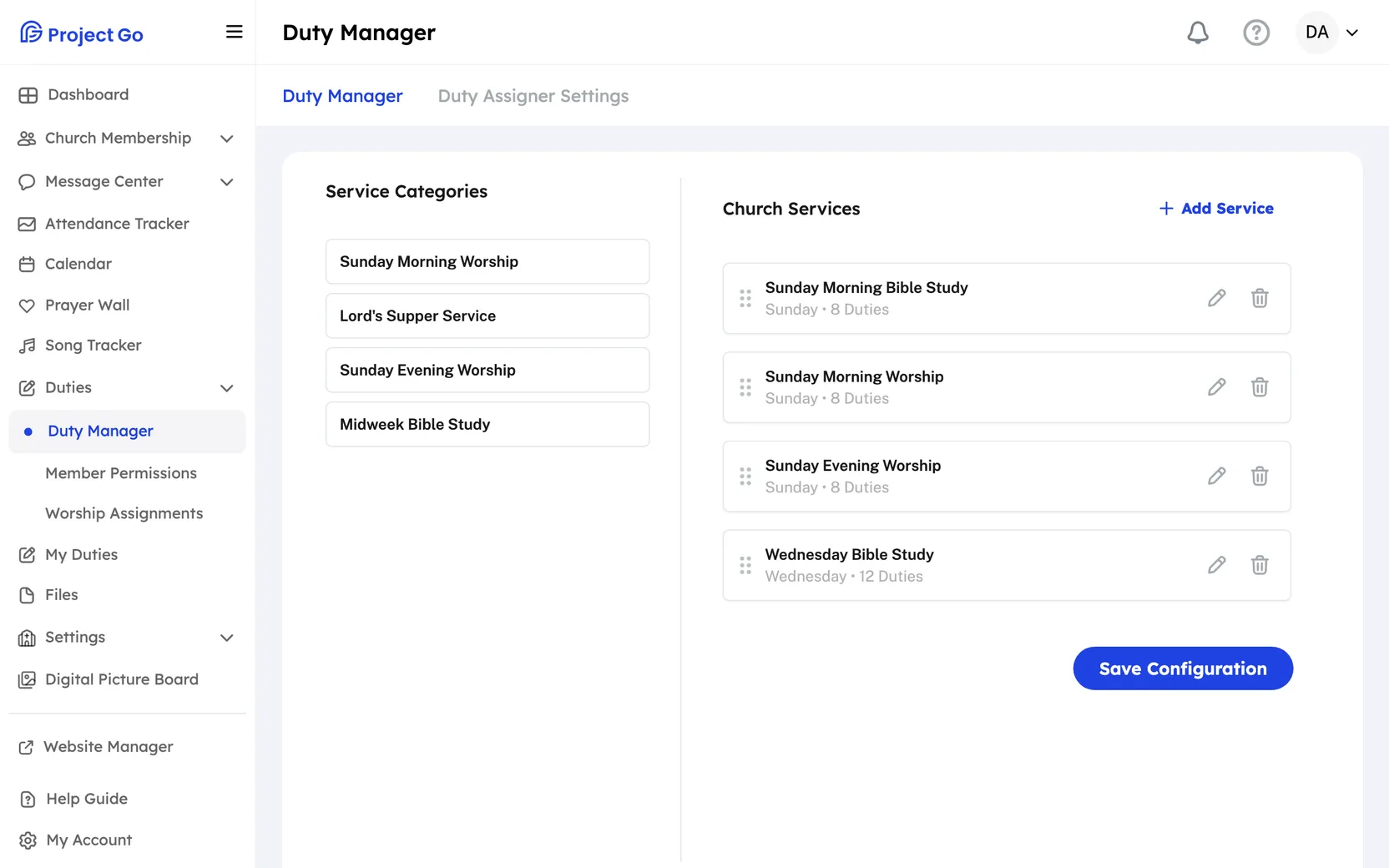
Where: In the menu, click Duties, then Duty Manager. The screen has two tabs: Duty Manager and Duty Assigner Settings.
Who can use this: Your role needs Edit access to Duty Manager in Role Management.
Add a service
- Next to Church Services, click Add Service.
- Click a service category in the list.
- Click Start From Template to begin with the typical duties for that service. Click Start From Scratch to begin with no duties.
- Under Service Information, fill in the fields in the table below.
- Add or change the duties. See the next sections.
- Click Save Configuration.
On a computer, you can also drag a category from Service Categories on the left onto the services area.
| Field | What to enter |
|---|---|
| Service Name: | The name members will see. Required. |
| Week Day: | The day the service meets. Required. |
| Recurrence: | Weekly, Monthly or Quarterly. |
| Start Time: and End Time: | When the service starts and ends. Optional. |
Add duties to a service
- Open the service. For a service you already saved, click the pencil icon in its row.
- Next to Duties, click Add Duty.
- Click a duty in the list. Type in Search duty... to find one.
- Click Save Configuration.
On a computer, you can also drag a duty from the Duties list on the left onto the service.
Create a custom duty
Use this when the duty you need is not in the list.
- Open the service, then click Create Custom Duty.
- Fill in the fields in the table below.
- Click Create.
- Click Save Configuration.
The new duty is added to the service. It also stays in the Duties list on the left, so you can use it on other services. Custom duties in that list have a menu with Edit Duty and Delete Duty.
| Field | What to enter |
|---|---|
| Duty Name: | The name of the duty. Required. |
| Gender: | Male, Female or Any. This decides which members can be given the duty. |
| Number of Volunteers: | How many people the duty needs each time. At least 1. |
| Assignment Duration: | Weekly, Monthly or Quarterly. |
| Description | Notes about the duty. |
Change, reorder or remove a duty on a service
- Open the service.
- To change a duty, click the pencil icon in its row, make your changes, and click Update.
- To change the order, drag a duty up or down by its handle.
- To remove a duty from the service, click the trash icon in its row.
- Click Save Configuration.
- Occurs on (optional): limits a duty to certain weeks of the month. Click 1st, 2nd, 3rd, 4th, 5th or Last. Leave it blank to have the duty every time the service meets.
- The choices under Assignment Duration: depend on the service's Recurrence:. A weekly service allows Weekly, 2 weeks, Monthly and Quarterly. A monthly service allows Monthly and Quarterly. A quarterly service allows Quarterly only.
- If you change Recurrence:, every duty on the service is set to the matching duration. You see the message Duties Updated.
Change, reorder or delete a service
- To change a service, click the pencil icon in its row, make your changes, and click Save Configuration.
- To change the order of the services, drag a service up or down by its handle, then click Save Configuration below the list.
- To delete a service, click the trash icon in its row, then click Yes, delete.
Member Permissions and Worship Assignments list the services in the order you save here.
Set the rules for automatic assignment
- Click the Duty Assigner Settings tab.
- In Maximum Duties Per Member Per Month, type a number from 0 to 31. Leave it empty for no limit.
- In Maximum Duties Per Member Per Day, type a number from 0 to 20. Leave it empty for no limit.
- Turn Avoid Back-to-Back Assignments on if members should not get duties on service days in a row.
- Click Save Changes.
These rules are used when duties are assigned automatically. See Worship Assignments.
If something goes wrong
- Service Name is required or Day of the week is required: fill in the field before you save.
- Duty 'name' is already in the service. A duty can be on a service only once.
- Duration Reset: the duty's duration no longer fits the service's recurrence. Choose a new Assignment Duration:.
- Are you sure you want to cancel? You are leaving with changes that are not saved. Click No, Go Back to keep working, or Yes, Leave to drop the changes.
On a phone
- Click More in the bottom bar, then Duties, then Duty Manager.
- There is no Service Categories panel and no dragging. Use Add Service and Add Duty.
- To change the order of services or duties, use the up and down arrows in each row.
- Inside a service, click Duties to open the list of duties.