Visitors
The Visitors page is your church's list of visitors. You can add visitors yourself, or visitors can add themselves by scanning a QR code. You can also follow each visitor with a status.
Where: In the menu, click Church Membership, then Visitors.
Who can use this: You need Edit access to Visitor Tracker, set in Role Management. With View access only, the Visitors item is not in the menu. If you open the page anyway, Project Go Hub sends you to the Dashboard.
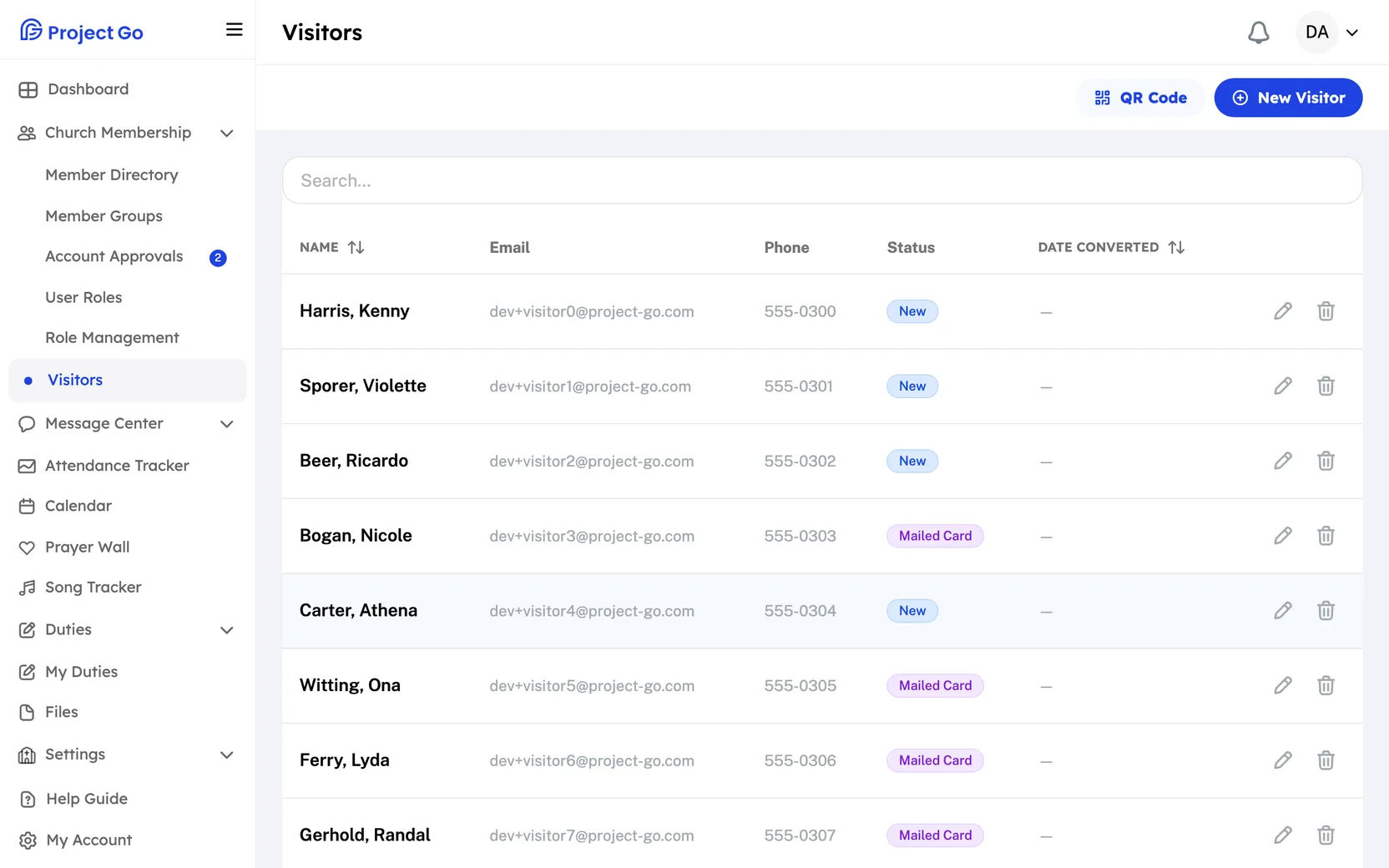
See the visitor list
The list has these columns:
| Column | What it shows |
|---|---|
| Name | Last name, then first name |
| The email address, or a dash if there is none | |
| Phone | The phone number, or a dash if there is none |
| Status | A colored tag: New, Followed Up, Mailed Card or Converted |
| Date Converted | The date, like 10/08/2026, or a dash if there is none |
On the right of each row are a pencil icon and a trash icon. If the list is empty, you see "No results."
Find and sort visitors
- To search, type in the Search... box above the list.
- To sort, click the Name or Date Converted heading.
- Click the same heading again to reverse the order.
- Under the list, click Next or Previous to move between pages.
Search matches the first name, the last name and the email. It does not search phone numbers. Under the list, the page count reads, for example, Page 1 of 3.
Add a visitor
- In the top right, click New Visitor.
- In First Name *, type the first name.
- In Last Name *, type the last name.
- If you know them, fill in Email, Phone Number, Address and Date Converted.
- Click Create Visitor.
Only the first name and the last name are required. Type the phone number with digits only: no spaces, dashes or parentheses. You can start it with a +. To leave without saving, click Cancel.
Change a visitor
- On the right of the visitor's row, click the pencil icon.
- Change the First Name *, Last Name *, Email, Phone Number, Address, Status or Date Converted.
- Click Update Visitor.
The top of the page shows the visitor's name in quotation marks. To leave without saving, click Cancel.
Mark a visitor as converted
- On the right of the visitor's row, click the pencil icon.
- In Status, choose Converted.
- In Date Converted, choose the date.
- Click Update Visitor.
Status and Date Converted are two separate fields. You set each one yourself. The other statuses you can choose are New, Followed Up and Mailed Card.
Delete a visitor
- On the right of the visitor's row, click the trash icon.
- In the Remove Visitor window, click Yes, delete.
Note: You cannot undo this. To keep the visitor, click Cancel.
Show the visitor QR code
Each church has one QR code. It opens your church's public visitor form.
- In the top right of the Visitors page, click QR Code.
- In the Visitor Registration QR Code window, hold the code up for visitors to scan.
- To share the link instead, click Copy Link.
The web address of the form is printed under the code. Visitors can also type it in. If you do not see the QR Code button, your church has no church domain set in Project Go Hub.
See what a visitor fills in
A visitor scans the code and the form opens. They do not need to sign in. The form shows your church's logo, or its name if there is no logo, and says "Welcome! Fill out this form and we'll be in touch."
| Field | Required? |
|---|---|
| First Name | Yes |
| Last Name | Yes |
| Phone Number | No |
| No | |
| Address | No |
The visitor clicks Submit. Then they see Thank you for visiting! and "We're glad you were here. Someone will be in touch soon." The form carries a reCAPTCHA notice at the bottom.
Choose who is told about new visitors
When a visitor registers with the QR code, a member group of your choice is told by email and push notification. You choose the group under Visitor Notifications in Customization. See Customization.
Add a visitor while you take attendance
On the attendance form, under Visitors, the Add New Visitor button makes a visitor without leaving the form. See Attendance Tracker.
On a phone
- In the bottom bar, click More, then Church Membership, then Visitors.
- The visitor list scrolls sideways if it is wider than the screen.
- On the add and change forms, First Name * and Last Name * are stacked, one above the other.
If something goes wrong
- First name is required or Last name is required: fill in the field.
- Please enter a valid phone number: type digits only. Do not use spaces, dashes or parentheses, and do not start with 0.
- Please enter a valid email address: check the email for typos.
- Failed to load visitors.: the list did not load. Open the page again.
- On the public form, "It looks like you've already registered with this church." means this visitor is already registered.
- On the public form, "Church not found" means the link is not right. Ask your church for the correct link or code.