Attendance Tracker
Use the Attendance Tracker to record who came to each service, count visitors, and see how attendance changes over time.
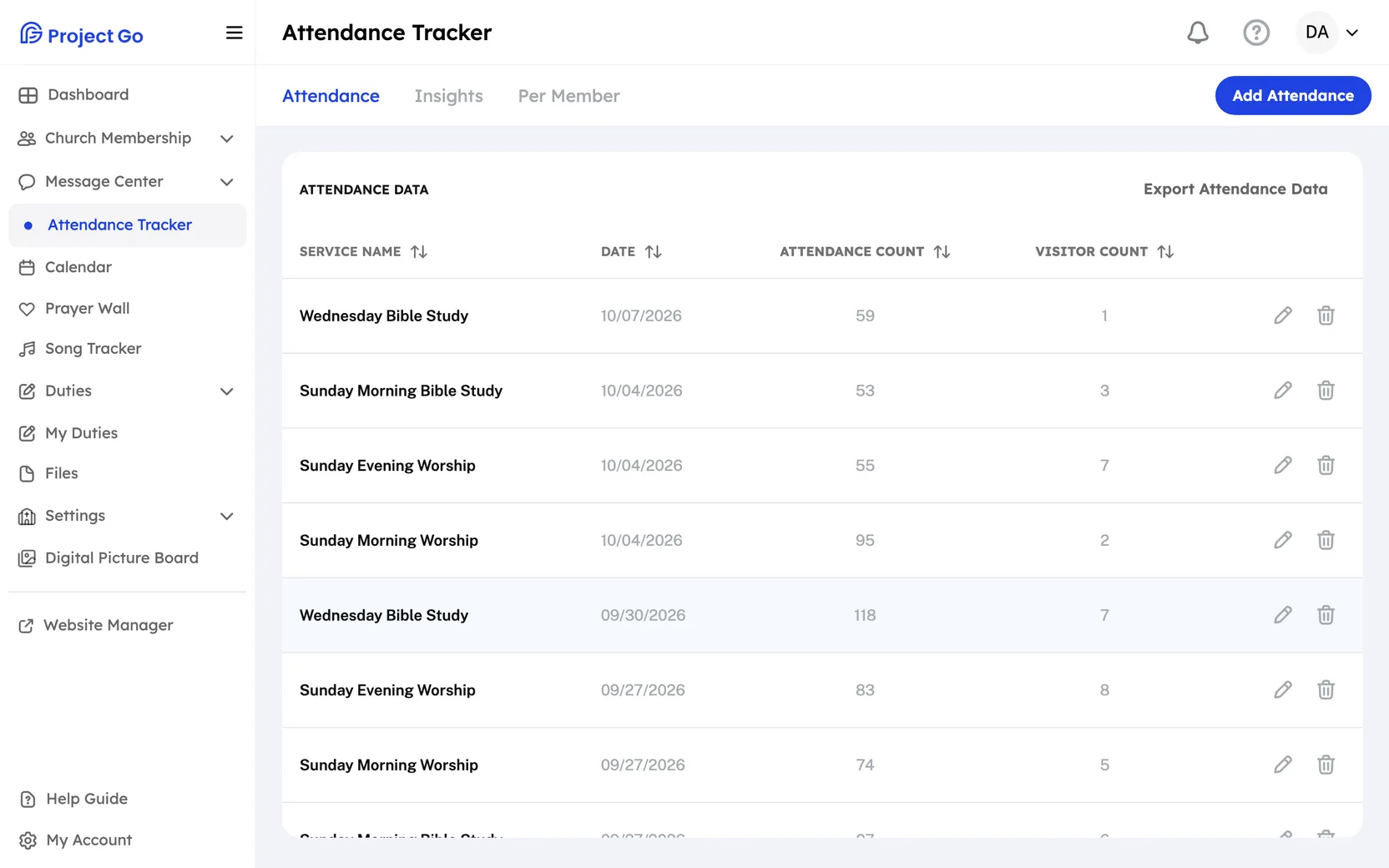
Where: In the menu, click Attendance Tracker. The screen has three tabs: Attendance, Insights and Per Member.
Who can use this: Your role needs Edit access to Attendance Tracker in Role Management. Without it, Project Go Hub sends you back to the Dashboard. The built-in Members role cannot open this screen.
Record attendance by member
- Open the Attendance tab.
- Click Add Attendance.
- Stay on the Members tab.
- Under Service, click the service.
- Under Date:, click Pick a date and choose the day.
- In the Members list, under Attended?, click the check mark for each member who came.
- Under Visitors, click Select visitors... and check each visitor who came.
- Click Save Attendance.
Note: Every member starts as absent. You only need to mark the people who came.
- To find a member, type in Search member name....
- To show one group only, click Member Group next to Filter by:. This filter shows only if your role can see Member Groups. Choose Users without groups to see members who are in no group.
- To give a reason for an absence, click the reason drop-down in that member's row and choose a reason.
- Total attendance count: is optional. Use it only when more people came than the members and visitors you marked.
Add a visitor who is not in the list
- Under Visitors, click Select visitors....
- Click Add New Visitor.
- Type the First Name * and Last Name *. You can also add Email, Phone Number and Address.
- Click Create Visitor.
- Click Select visitors... again and check the new visitor.
Add an absence reason
- In the row of an absent member, click the reason drop-down.
- Click Add reason.
- Type the Reason Name.
- Click Add new reason.
Record only a total
Use this when you counted the room but did not mark each member.
- On the Attendance tab, click Add Attendance.
- Click the Overall tab.
- Under Service, click the service.
- Under Date:, click Pick a date and choose the day.
- Type the total number of people in the attendance box.
- Click Add Attendance.
Change or delete a record
- On the Attendance tab, find the record. The list shows Service Name, Date, Attendance Count and Visitor Count.
- To change it, click the pencil icon, make your changes, and click Save Attendance. For a total-only record, click Submit.
- To delete it, click the trash icon, then click Yes, delete.
Note: You cannot undo a delete.
Export attendance
- On the Attendance tab, click Export Attendance Data.
- To limit the dates, choose a From date and a To date. The date range is optional.
- Under Download format:, choose .csv file, .xls file or .pdf file.
- Click Download.
See attendance trends
- Click the Insights tab.
- To narrow the charts, click Range or Service next to Filter by. Range offers Current Month and Previous Month.
- The cards at the top show the average for each service this month, with the change Compared to previous month.
- Attendance Information is a line chart with one line for each service.
- Monthly Attendance Stats is a bar chart. It always shows the last 12 months, whatever range you pick.
- Total Attendance Stats is a pie chart for the range and services you picked.
Check or fix one member's attendance
- Click the Per Member tab.
- Find the member. Type in Search Member Name, or click Member Group next to Filter by.
- Look at Last 10 Attendances. Green means present. Red means absent. Gray means there is no record for that member at that service.
- To change a past record, click the pencil icon in the row.
- Under Attended?, click the check mark or the X for the service you want to change.
Each change on this screen saves right away. There is no save button.
If something goes wrong
- Service is required: click a service before you save.
- Service date cannot be in the future: pick today or an earlier date.
- Invalid Attendance Count: the number in Total attendance count: is lower than the members and visitors you marked. Raise the number or clear the box.
On a phone
Click More in the bottom bar, then click Attendance Tracker. The steps are the same.