Message Center
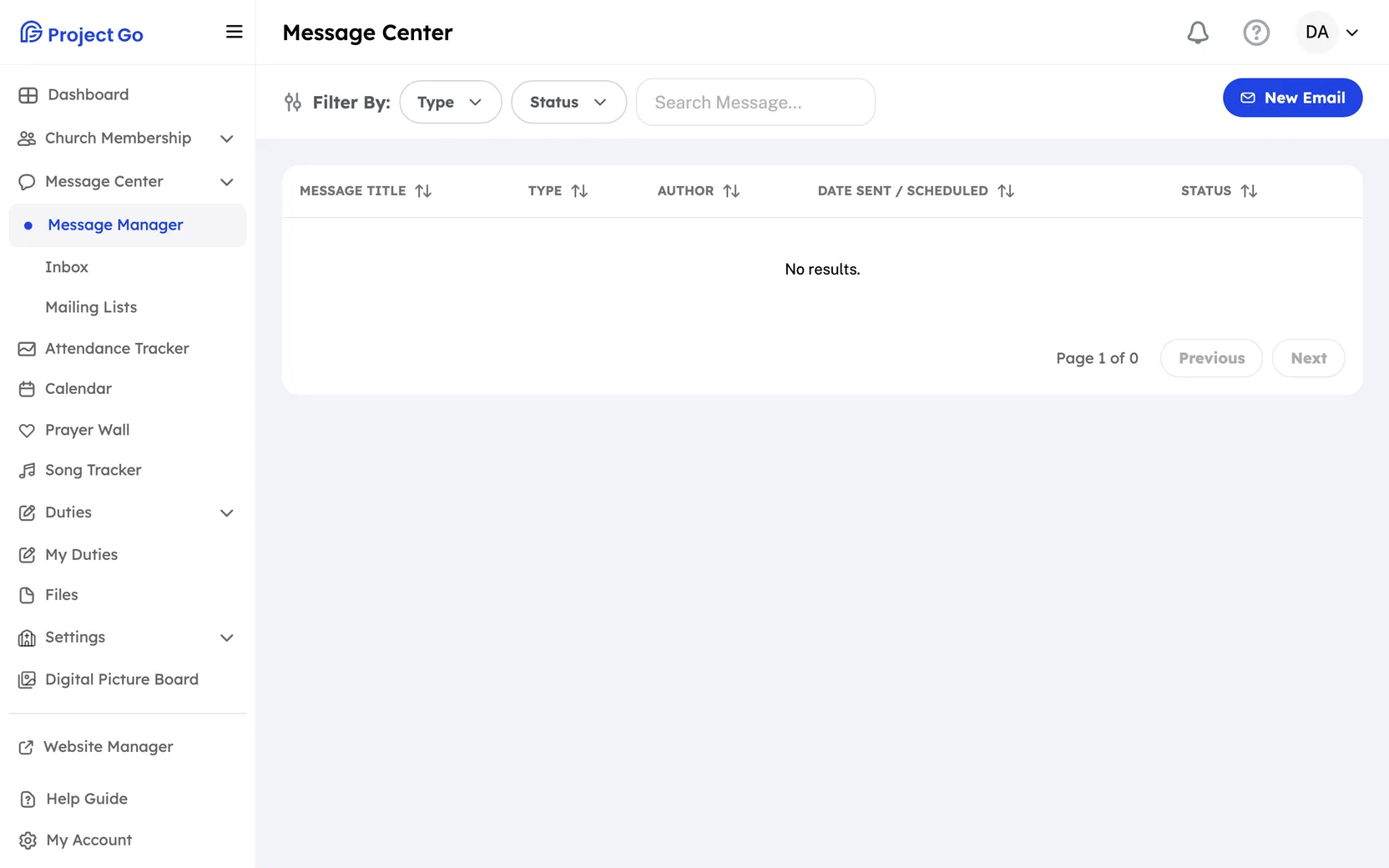
Use the Message Center to send emails and text messages to members, read the messages sent to you, and keep mailing lists.
Where: In the menu, click Message Center. It has three items: Message Manager, Inbox and Mailing Lists.
Who can use this: Access is set for each item in Role Management.
- Message Manager: Edit access lets you send to anyone. View access shows the list of messages only. People who are allowed to send to a member group also see Message Manager. See "Let a group send its own messages" below.
- Inbox: needs Edit access.
- Mailing Lists: View access shows the lists. Edit access lets you add, change and delete them.
Send an email
- In the menu, click Message Center, then Message Manager.
- Click New Email.
- Click Recipient Members, Recipient Groups or Mailing Lists.
- Check the names you want.
- Click Save Selection.
- Type the Subject.
- Type your message in the box below the subject.
- Click Send.
You see Message sent successfully. when the email goes out.
- You can mix members, groups and mailing lists in one email. You need at least one.
- To send to almost everyone, open Recipient Members, check Select All Members Except, and then check only the people to leave out.
- The toolbar above the message box formats your text. It also has Add image and Attach file.
- To change the look of the email, click the template name below the message box. It starts as Simple Text. Pick Minimal, Simple Text or Simple Text (no logo), then click Select.
- Reply-To-Email Address shows your own email address. You cannot change it on this screen.
- The icons next to Send show their names when you point to them: See All Recipient Emails, Copy All Recipient Emails, Save as a draft, Preview and Schedule Send.
Send a text message
- In Message Manager, click New Text.
- Click Recipient Members or Recipient Groups.
- Check the names you want.
- Click Save Selection.
- Type your message.
- Click Send.
- New Text shows only if text messaging is turned on for your church.
- A text can be up to 320 characters. A counter shows how many you used.
- A text has no subject, template or attachments.
- The text starts with your church name.
- Only members with a phone number are in the member list. Members without a mobile number, or with texts turned off, do not get the text.
- You cannot send a text to a mailing list.
Save a draft
- Fill in the recipients and the message.
- Next to Send, click Save as a draft.
The message is saved with the status Draft.
Schedule a message for later
- Fill in the recipients and the message.
- Next to Send, click Schedule Send.
- Click the date in the calendar.
- Under Select Time:, choose the Hour, Minute and AM/PM.
- Click Schedule Send.
- Minutes can be 00, 20 or 40.
- You can pick only a date after today.
- To change the time later, open the message with the pencil icon and click Reschedule.
Find, change or delete a message
- In Message Manager, use Type, Status or Search Message... to narrow the list. The search looks at the message title.
- Click a message title to read it.
- To change a message, click the pencil icon in its row. Only Draft and Scheduled messages have a pencil.
- To delete a message, click the trash icon, then click Yes, delete.
Note: You can change or delete only your own messages. The pencil and trash icons need Edit access to Message Manager.
Let a group send its own messages
Each member group has a setting called Who can send messages to this group:. You set it when you edit the group in Member Groups.
| Setting | Who can send to the group |
|---|---|
| Leaders only | The group's leaders |
| Leaders and chosen members | The leaders, plus the members you pick |
| All members of this group | Everyone in the group |
What a group sender sees:
- Message Manager in the menu, with New Email.
- Only Recipient Groups, and only the groups they may send to. If there is just one group, it is already filled in.
- New Text only if they lead a group, and only for the groups they lead.
- No pencil or trash icons in the message list.
Read your messages
- In the menu, click Message Center, then Inbox.
- Click a message in the list to read it.
The newest message is at the top and opens first.
Reply to a group conversation
Some group messages are group conversations. They show a reply box under the message.
- Open the message in Inbox.
- Type in the Type your reply here... box.
- Click Send Reply.
Your reply appears under Replies. Other messages have no reply box.
Create a mailing list
A mailing list is a saved set of email addresses. It can include people who are not members. Mailing lists work for emails only.
- In the menu, click Message Center, then Mailing Lists.
- Click New Mailing List.
- Type the Mailing List Name:.
- Under Mailing List Members:, check the members to add.
- Under Additional Email Addresses:, type any other email addresses, separated by commas.
- Click Add List.
A list needs at least one member or one email address.
Change or delete a mailing list
- In Mailing Lists, find the list.
- To change it, click the pencil icon, make your changes, and click Update List.
- To delete it, click the trash icon, then click Yes, delete.
Set the From name and the reply address for your church
The name members see on emails from your church, and the church reply-to address, are set in Settings > Customization, under From Name and Reply-To Email. See Customization.
If something goes wrong
- At least one recipient (Member, Group, or Mailing List) must be selected. Add a recipient.
- Subject is required or Content is required: fill in the missing part.
- Validation Error: a draft, a preview and a scheduled message all need the recipients and the message filled in first.
- Banner Required: the Minimal template needs a banner image. Click Go to Settings to add one in Customization, or pick another template.
- At least one User or email is required: add a member or an email address to the mailing list.
On a phone
- Inbox is in the bottom bar. Click a message to open it. Click the back button at the top to return to the list.
- Message Manager and Mailing Lists are under More, in Message Center.
- In a group conversation, the send button is an icon.