User Roles
User Roles is where you give each person a role. A role decides which screens the person can open and whether they can change things there. You build the roles themselves in Role Management.
Where: In the menu, click Church Membership, then User Roles.
Who can use this: You need Edit access to User Roles, set in Role Management. This screen has no View level.
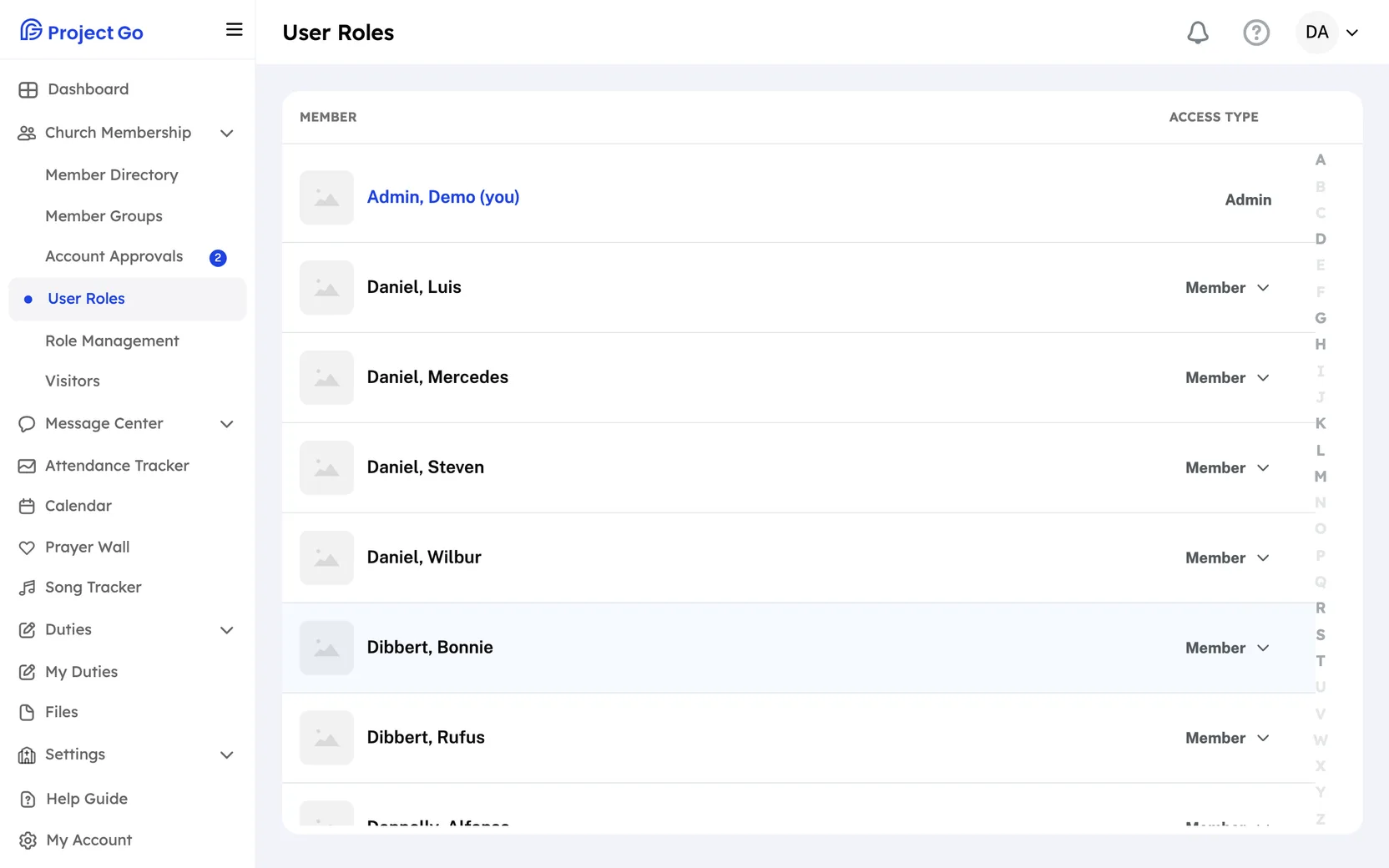
See who has which role
The list has two columns: Member and Access Type. Access type is the person's role.
- The list is sorted by last name, then first name.
- On a computer, click a letter on the right side to jump to that part of the list.
- Your own row is marked (you).
- A person is in the list only if their profile has an email address. Former members are not listed.
Change a person's role
- Find the person in the list.
- On the right of their row, click the role name under Access Type.
- Click the new role.
You see the message Access Type Updated! The change is saved right away. There is no Save button.
- The menu lists Admin, Member, and every role your church created in Role Management.
- You cannot change your own role. Ask another person with access to this screen to do it.
Give a person a custom role
- Create the role first. See "Create a role" in Role Management.
- Come back to User Roles.
- Change the person's role to the new one, as shown above.
If a person is missing from the list
- Open the person's profile in the Member Directory.
- Make sure Email: is filled in and Current Member is turned on.
- Click Save.
On a phone
In the bottom bar, click More, then Church Membership, then User Roles. The steps are the same. The strip of letters on the right does not show.
If something goes wrong
- Failed to Update! The role was not changed. Try again.