Song Tracker
The Song Tracker keeps your church's song books and songs. It also records which songs were led at each service, holds song lists you prepare ahead of time, and collects song requests from members.
Where: Click Song Tracker in the menu. On a phone, click More in the bottom bar, then Song Tracker.
Who can use this: You need View or Edit access to Song Tracker, set in Role Management. View access lets you read every tab, open the Led Songs and Song Lists details, and add a song request. Edit access adds every other add, pencil and trash button.
The page has five tabs: Led Songs, Song Lists, Song Requests, Songs and Song Books. It opens on Led Songs. If the tabs do not fit on a phone, slide them sideways.
| Tab | What it holds |
|---|---|
| Led Songs | A record of the songs led on one date at one service |
| Song Lists | A list of songs for a service, with a leader |
| Song Requests | Songs that members asked for |
| Songs | Every song, with its song book and number |
| Song Books | The books your songs belong to |
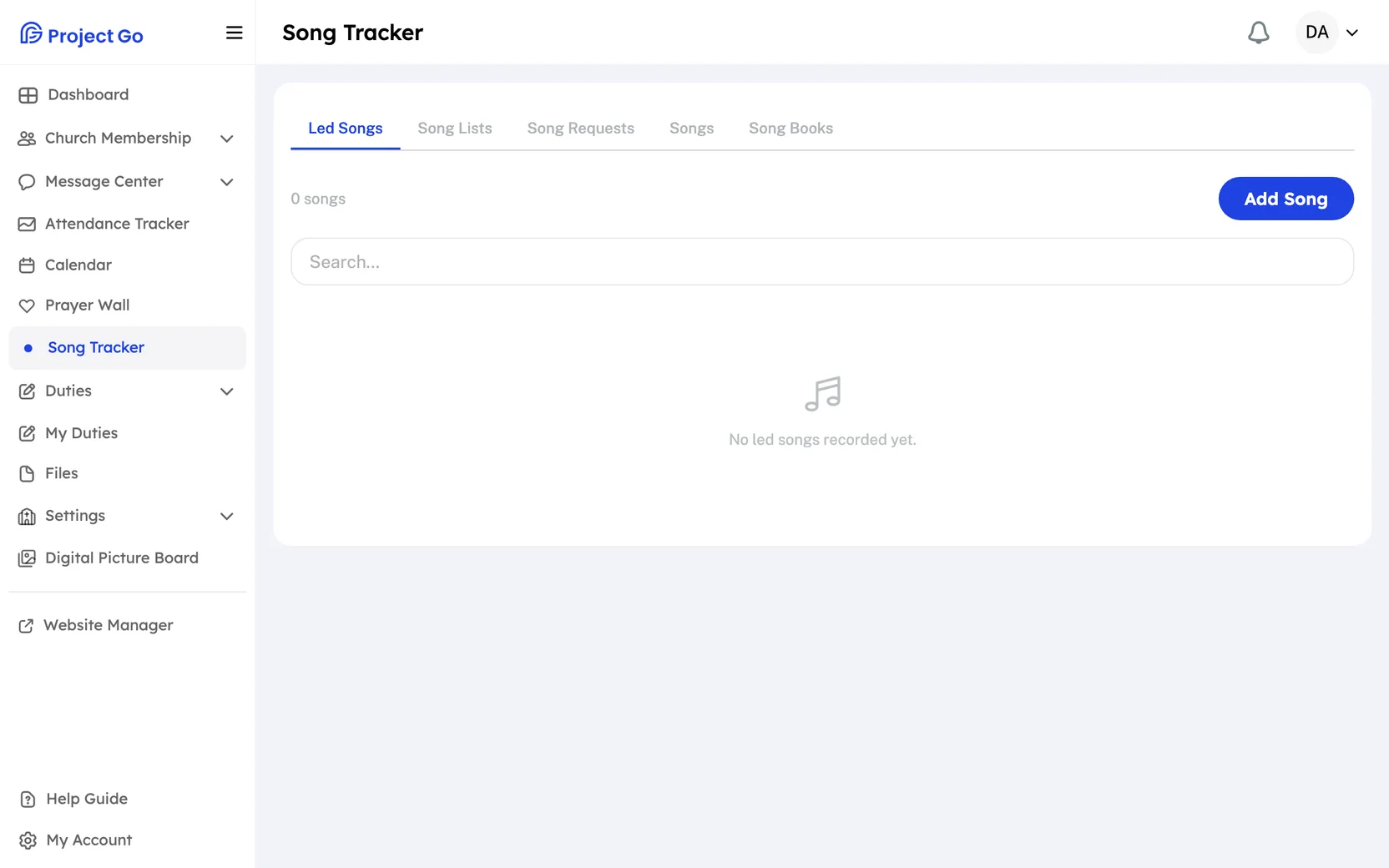
Search a tab
- Click a tab.
- In Search..., type a word.
The list shrinks to the rows that match. What the search looks at:
- Led Songs and Song Lists: the leader's name and the service name.
- Song Requests: the song title and the name in Requested By.
- Songs: the song title.
- Song Books: the song book name.
Show the songs from one song book
- Click the Songs tab.
- Open the menu that says All Song Books.
- Choose a song book.
The number next to the menu shows how many songs are in the list. Choose All Song Books to see every song again.
Add a song book
This needs Edit access. Add your song books before your songs.
- Click the Song Books tab.
- Click Add Song Book.
- In the New Song Book window, type the book's name in Name.
- If you want, type in Description.
- In Status, choose Active or Inactive.
- Click Save.
You see "Song book created." The list shows each book's name, description, status and how many songs it holds. Save stays off until you type a name. An Inactive book does not appear in the Song Book menus when you add a song or a song request.
Add a song
This needs Edit access. Add Song is off until at least one song book is Active.
- Click the Songs tab.
- Click Add Song.
- In the New Song window, type the name in Title.
- In Song Book, choose a book.
- If the book numbers its songs, type the number in Song Number (optional).
- Click Save.
You see "Song created." Save stays off until you have a title and a song book.
Request a song
Anyone who can open the Song Tracker can do this.
- Click the Song Requests tab.
- Click Add Request.
- In the Request a Song window, type the name in Song Title.
- If you know it, choose a book in Song Book (optional).
- If you know it, type the number in Song Number (optional).
- Click Submit.
You see "Song request submitted." The list shows the title, the book, the number, Requested By and the Date.
Make a song list
This needs Edit access.
- Click the Song Lists tab.
- Click Add Song List.
- In the New Song List window, choose a service in Service.
- In Leader, choose a member.
- In Status, choose Unpublished or Published.
- Under Songs, check the box next to each song.
- Click Save.
You see "Song list created." A line under the song boxes counts how many songs you picked. Save stays off until you choose a service and a leader. A new list starts as Unpublished.
Record the songs led at a service
This needs Edit access.
- Click the Led Songs tab.
- Click Add Song.
- In the New Record window, choose the day in Date. It starts as today.
- In Service, choose the service.
- In Leader, choose the member who led.
- Under Songs, check the box next to each song that was led.
- Click Save.
You see "Led songs record created." Save stays off until you choose a date, a service and a leader. The list shows one row per record, with the number of songs in it.
Fill a led-songs record from a song list
You can do this only when you add a new record. It is not in the window when you change an existing record.
- On the Led Songs tab, click Add Song.
- In the New Record window, check Import from a Song List.
- In Song List, choose a list.
- If more songs were led, check them under Additional Songs (not already in list).
- Fill in Date, Service and Leader.
- Click Save.
The songs from the list show checked and gray, with the words "from list." You cannot uncheck them. A line under the boxes shows how many songs are imported and how many are additional. Each choice in Song List shows the service name and whether the list is published or unpublished.
Open a song list or a led-songs record
- Click the Song Lists or Led Songs tab.
- On the right of the row, click the eye icon.
- Read the window. It shows the service, the leader and the songs in order, with each song number in parentheses. A song list also shows its status.
- Click Close.
Change a row
This needs Edit access. It works on the Led Songs, Song Lists, Songs and Song Books tabs. Song requests cannot be changed.
- On the right of the row, click the pencil icon.
- Change the fields.
- Click Save.
The window is named Edit Song Book, Edit Song, Edit Song List or Edit Record. You see a message such as "Song updated."
Delete a row
This needs Edit access. It works on every tab.
- On the right of the row, click the trash icon.
- In the window that asks you to confirm, click Delete.
| Tab | Window name |
|---|---|
| Led Songs | Delete Record |
| Song Lists | Delete Song List |
| Song Requests | Delete Song Request |
| Songs | Delete Song |
| Song Books | Delete Song Book |
Note: When you delete a song book, the window says it also deletes all the songs in that book.