Prayer Wall
The Prayer Wall is where members share prayer requests and pray for one another. You can post a request, tell others you are praying, leave a comment, and mark your own request as answered.
Where: Click Prayer Wall in the menu. On a phone, click More in the bottom bar, then Prayer Wall.
Who can use this: You need View or Edit access to Prayer Wall, set in Role Management. View access lets you read, post, pray, comment, mark your own requests answered, and delete your own requests and comments. Edit access adds the Require approval before posting switch, the Pending Approvals tab, the Approve button, and Delete on every request and comment.
The page has these tabs: Prayer Wall, Answered Prayers, My Requests and, with Edit access, Pending Approvals. The page opens on My Requests.
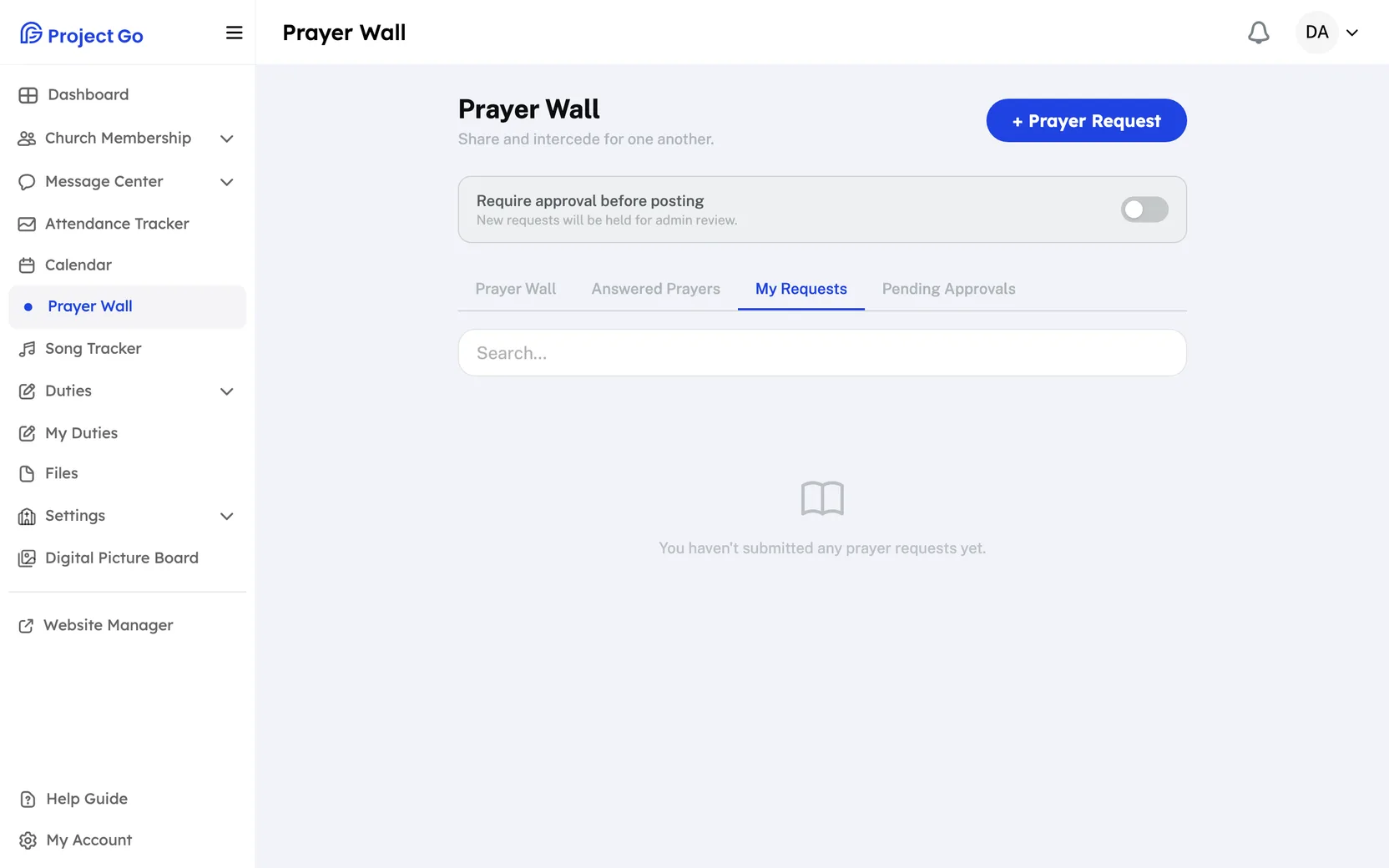
Read prayer requests
- Click the Prayer Wall tab to read current requests.
- Click the Answered Prayers tab to read requests that have been marked answered.
- Click the My Requests tab to see only the requests you posted.
Each request shows the name of the person who posted it, the date and the request. A request marked answered shows an Answered badge.
Search the requests
- Click a tab.
- In Search..., type a word. The list shows only requests that have the word in the request or in the name.
Post a prayer request
- At the top of the page, click + Prayer Request.
- In the Submit a Prayer Request window, click in the Prayer Request box and type your request.
- To hide your name, check Post anonymously.
- Click Submit.
A request can have up to 1,000 characters. A counter under the box shows how many you have used. Submit stays off until you type something. When your request is sent, you see "Prayer request submitted." An anonymous request shows the name Anonymous.
Tell others you are praying
- Find the request.
- Click Praying.
The button turns solid, and a number shows how many people are praying. Click Praying again to take your name off.
Comment on a request
- Under the request, click Comment. If the request already has comments, this button shows the count, such as 2 comments.
- In Write an encouraging comment..., type your comment.
- Click Post.
A comment can have up to 300 characters. Click the same button again to close the comments.
Delete a comment
- Open the comments under the request.
- Click the X at the right of the comment. You see this X on your own comments. With Edit access, you see it on every comment.
- In the box that asks "Delete this comment?", confirm.
Mark your request as answered
- Click the Prayer Wall or My Requests tab.
- Find your request.
- Click Mark Answered.
You see "Marked as answered." The request moves to the Answered Prayers tab. Only the person who posted a request sees Mark Answered.
Delete a request
- Find the request.
- Click Delete. You see this button on your own requests. With Edit access, you see it on every request.
- In the box that asks "Delete this prayer request?", confirm.
You see "Prayer request deleted." The page has no way to edit a request after you post it.
Require approval before requests post
This needs Edit access.
- At the top of the page, find Require approval before posting.
- Click the switch to turn it on or off.
The text under the switch says new requests will be held for admin review. You see "Approval enabled." or "Approval disabled."
Approve a pending request
This needs Edit access.
- Click the Pending Approvals tab. A number on the tab shows how many requests are waiting.
- Read the request. It shows a Pending Approval badge.
- Click Approve.
You see "Prayer request approved." To turn a request down, click Delete on it instead. Pending requests do not show the Praying or Comment buttons.
On a phone
The tabs have shorter names: Wall, Answered, Mine and, with Edit access, Pending. The + Prayer Request button is a round button at the bottom right of the screen, just above the bottom bar.