Automated Messages
Project Go Hub sends a few emails on its own. On this screen you choose who at your church gets those emails, and whose email address members see when they have questions.
Where: In the menu, click Settings, then Automated Messages.
Who can use this: Your role needs access to Automated Messages in Role Management.
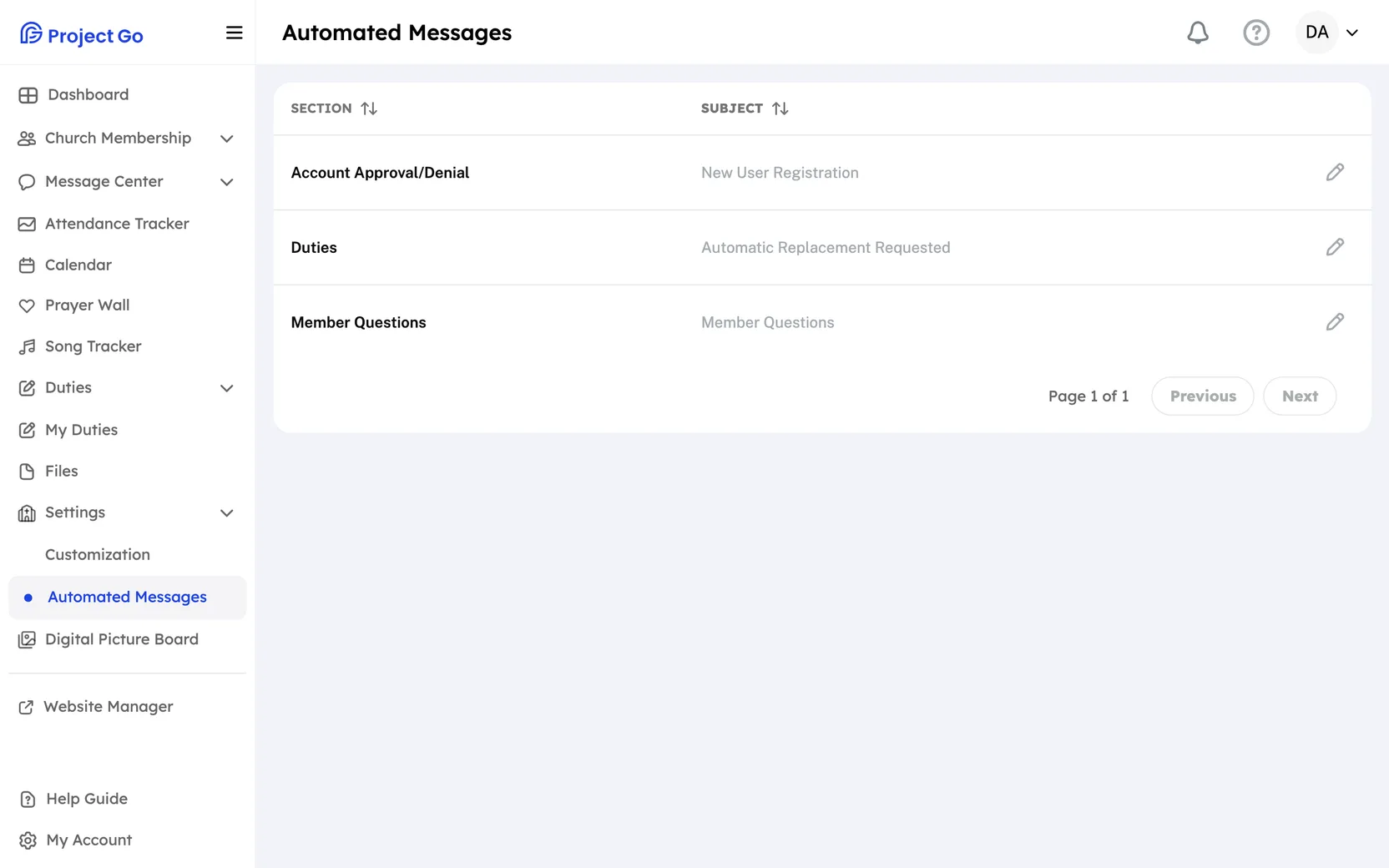
See the three messages
The list has two columns, Section and Subject.
| Section | Subject | What it is |
|---|---|---|
| Account Approval/Denial | New User Registration | Tells the people you choose that a new user registered and is waiting for approval. |
| Duties | Automatic Replacement Requested | Tells the people you choose that a member asked for a replacement on a duty. |
| Member Questions | Member Questions | The email address you choose is added to emails sent to members, so they know who to contact with questions. |
Choose who gets a message
- Click the pencil icon in the row of the message.
- Click the box under Administrator Email:.
- Click each email address you want.
- Click Save.
- Account Approval/Denial and Duties can have more than one person.
- Member Questions can have one person only.
- People with no email address are not in the list.
- Subject: and Content: show what the email is about. You cannot change them.
- Cancel puts back the choice that was saved before.
If something goes wrong
- At least one email is required: choose an email address before you click Save.
On a phone
Click More in the bottom bar, then Settings, then Automated Messages.